…or maybe not so simple…
The Requirement
With the recent Windows 10 EOL, I decided to migrate my home server back to Ubuntu.1
The server is mainly used as a NAS file share, but I also occasionally use it for hosting web development projects. It’s only used periodically, and I prefer that it automatically go sleep when not in use. As anyone who has been in a similar situation before can tell you, that’s a lot more difficult to achieve than it seems like it should be.
I was using a script on Windows 10 that would periodically update the sleep timeout based on if any files were being accessed, but I quickly realized that wouldn’t be possible on Ubuntu(more on that later).
I turned to Google, and found this outstanding blog post by Daniel Gross on how to set up a Linux server to automatically go to sleep and wake up on demand. It’s a great guide, but I wanted a few things that his method didn’t account for:
- I needed something with a cool-down period before going back to sleep (e.g. wait an hour after the last file access before going back to sleep)
- I didn’t want to shift from one always-on piece of hardware to another always-on piece of hardware, even if the new one uses less power
- I didn’t want external hardware requirements at all… I don’t own a Raspberry Pi, and if my ISP-provided router doesn’t support unicast wake-on-LAN packets, I need to add an additional router to the list of extra hardware that will be running all the time
- I’d also ideally like to keep IPv6; it’s a minor thing, but I’d prefer not to contribute to the propagation of old standards if I can
I was also willing to compromise on the following:
- I was already set up for, and used to using, manual wake-on-LAN, so continuing to do that was no big deal
My Solution
I’ll talk more about the process below, but to avoid burying the lede any further, here’s the solution:
1. Enable Wake-On-LAN (WoL)
The method Gross outlined to enable WoL wouldn’t persist for me (i.e. WoL kept turning back off). After trying several different solutions suggested by the internet (that also wouldn’t persist), I found that Ubuntu, as of at least Ubuntu 24.04, has a setting in the GUI that allows you to just turn it on.2
You will need to open the Advanced Network Configuration app then (1) select your network adapter, (2) open the settings for the adapter, (3) go to the “Ethernet” tab, and (4) enable WoL by magic packet (or any other desired option).
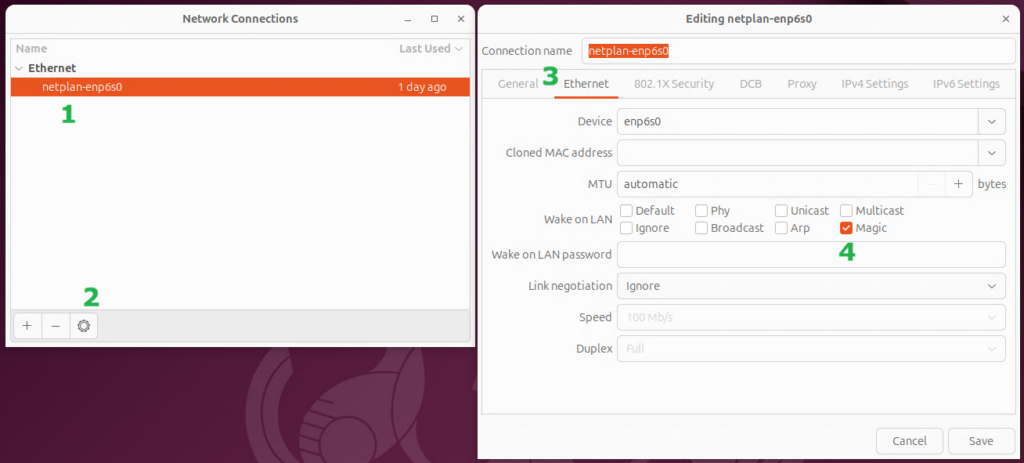
You will also need to make sure that WoL is enabled in the server’s BIOS/UEFI settings, and that your router isn’t blocking it.
2. Copy this Python Script
Create a file with the script below somewhere on your server. This script works in Ubuntu 24.04 (and likely newer) when using the GNOME desktop environment.
import subprocess
from sys import exit

# Amount of minutes between each execution of this script
# **Important** The same interval must be set in the cron job
RUN_INTERVAL = 10

# Amount of idle minutes until the system should be suspended
TIMEOUT = 60


def CmdToInt(cmd):
    try:
        output = subprocess.check_output(cmd, shell=True, text=True)
        return int(output.strip())
    except subprocess.CalledProcessError as e:
        if str(e) == "Command 'cat /var/tmp/suscount' \
returned non-zero exit status 1.":
            WriteCount(0)
            return 0
        else:
            print(f"Error running command: {e}")
            exit(1)
    except ValueError:
        print("Command output was not a valid number.")
        exit(1)


def CheckIdleTimes():
    cmd = "loginctl list-users | grep -v 'LINGER STATE' | \
        grep -v 'users listed' | awk '{print $2}'"
    user_list = subprocess.check_output(cmd, shell=True, text=True)
    min_idle = (TIMEOUT * 2) * 60000
    for user in user_list.splitlines():
        if user == "":
            continue
        user_idle = GetIdleTime(user)
        if user_idle < min_idle:
            min_idle = user_idle
    return min_idle


def GetIdleTime(user):
    cmd = f"pgrep -u {user} gnome-shell | head -n 1"
    pid = subprocess.check_output(cmd, shell=True, text=True).strip()

    cmd = f"sudo grep -z DBUS_SESSION_BUS_ADDRESS /proc/{pid}/environ\
        | cut -d= -f2-"
    bus = subprocess.check_output(cmd, shell=True, text=True)
    bus = bus.strip().replace('\x00', '')

    cmd = f"sudo -u {user} DBUS_SESSION_BUS_ADDRESS=\"{bus}\" gdbus call \
        --session --dest org.gnome.Mutter.IdleMonitor \
        --object-path /org/gnome/Mutter/IdleMonitor/Core \
        --method org.gnome.Mutter.IdleMonitor.GetIdletime"
    raw_time = subprocess.check_output(cmd, shell=True, text=True).strip()

    return int(raw_time[8:-2])


def WriteCount(count):
    with open("/var/tmp/suscount", "w") as file:
        file.write(str(count))


counter = CmdToInt("cat /var/tmp/suscount")

# ####################################################################
# ######### Commands to Check for Relevant System Activity ###########
# ####################################################################

shared = CmdToInt("lsof -w | grep /srv/samba/shared_folder/ | wc -l")
web = CmdToInt("ss -an | grep -e ':80' -e ':443' | \
                grep -e 'ESTAB' -e 'TIME-WAIT' | wc -l")
backup = CmdToInt("ps -e | grep 'duplicity' | wc -l")
logged_in = CmdToInt("who | wc -l")


######################################################################
# ## The If-Statement Below Needs to be Tailored to Each Use Case ####
######################################################################

if (shared + web + backup + logged_in) > 0: #True if activity detected
    if counter > 0:
        WriteCount(0)
    exit(0)

counter += 1
WriteCount(counter)

idle_mins = CheckIdleTimes() // 60000
if idle_mins < (counter * RUN_INTERVAL):
    counter = idle_mins // RUN_INTERVAL

if (counter * RUN_INTERVAL) >= TIMEOUT:
    WriteCount(0)
    subprocess.run("systemctl suspend", shell=True, text=True)

exit(0)3. Customize the Script
This script needs to be customized in 4 ways:
- Set the “RUN INTERVAL”: This represents the time, in minutes, between each time the script is run. This same number will be set in a cron job later.
- Set the “TIMEOUT”: This is how long the computer needs to be inactive before it will be suspended. It won’t be suspended exactly at this time, but rather the first time the script runs when it has been inactive for at least this long.
- Configure the commands that will check for activity: This is the most complicated part of the setup and requires some familiarity with Python and using the Linux command line interface. Each command should return an integer value that can be stored for later. I have four commands that check for activity:
- The first checks if there are any active connections to my file share folder. If you are looking for the same functionality, just change “
/srv/samba/shared_folder/” to the path of your shared folder. - The second checks if there are any active web connections. This command should be fairly universal for that purpose, presuming standard settings (e.g. using default ports).
- The third checks if a duplicity backup is in progress, so I won’t have the server go to sleep mid-backup. In my case, duplicity initiates web connections that will be caught by the prior command, but I figured it’s best to explicitly check for this anyway, just to be sure. This command can search for any program by replacing “
duplicity” with the name of the program you are looking for. - The fourth command checks if anyone is logged in to the server. This command should also be universal for this purpose.
- All of the commands end with “
| wc -l“, which counts the number of lines returned by the preceding parts of the command. This is what converts it into number for the python script.3
- The first checks if there are any active connections to my file share folder. If you are looking for the same functionality, just change “
- The if statement that determines if activity was detected may need to be modified. In my case, all of the commands will result in 0 if no activity is detected. As long as all of my results add up to 0, nothing was detected. However, there may be other commands that always have results, and anything above a particular baseline would indicate activity. The if statement would need to be tailored to that situation.
After all of the above is complete, the script will check the idle time for anyone logged into a desktop session and adjust as necessary. This will also detect any recent activity at the login screen.
4. Ensure the File is Executable
Once the script is tailored to your situation, make sure the file is executable:
sudo chmod +x /your_path/your_filename5. Create a Cron Job
Finally, create a cron job to actually run the script at regular intervals. Use the following command edit the root cron job list:
sudo crontab -eAnd then add the following line (with the correct path and filename). You must use full absolute paths because the script won’t be run from your current working directory. If entered as it is below, the python script will be run every 10 minutes. It’s also possible that python3 will be at a different path, but this is where it should be with a standard Ubuntu installation.
*/10 * * * * /usr/bin/python3 /your_path/your_filename
And that’s it! You’re done!
The Discovery Process
As I mentioned above, I previously used a script on Windows to adjust the sleep timeout based on file share activity.
The script worked like this: if activity was detected, it would set the sleep timeout to 0 (i.e. disable sleep). If no activity was detected, it would set the sleep timeout to 61 minutes. This script was scheduled to run every 15 minutes, so if there was no activity four consecutive times, the computer would go to sleep 1 minute later.
Just for posterity, this was the script:
$shared = Get-WmiObject Win32_ServerConnection -ComputerName SERVER | Select-Object ShareName,UserName,ComputerName | Where-Object {$_.ShareName -eq "Shared Folder"}

if ($shared -ne $null) {
  Powercfg /Change standby-timeout-ac 0
}
else {
  Powercfg /Change standby-timeout-ac 61
}I quickly learned a similar approach wouldn’t work with Ubuntu.
The automatic sleep function in Ubuntu isn’t a system-wide setting. Rather it is set per user, and it is only checked when that user is logged into a desktop session. It’s rare for anybody to directly log into the server, so that wasn’t looking promising.
There is a user, “gdm”, that is responsible for managing the login screen, and changing that user’s settings can make it automatically go to sleep. However, changing that user’s power profile settings requires resetting the user’s session… and resetting the user session resets the idle time… and regularly resetting the idle time ensures you’ll never hit your sleep timeout.
Also, none of the above accounts for things like “don’t go to sleep when you are running a backup” at all! It only checks if there has been any activity on the desktop.
I needed a completely new approach.
I decided it would be best to just make a python script to do exactly what I wanted directly.
After getting the basic shell of the script set up to run commands and use an additional file to track how how long it’s been since the script detected any activity, I needed to figure out which commands would detect any relevant server activity. Daniel Gross’s method uses a command that can give information about logged in users, so I copied that model for the rest of my approach.
Google was quick to find me a command that could list files that were in use. It took a bit more manual work to tune the commands for finding what web sessions are active and when a backup is running, but those weren’t too difficult either.
The biggest challenge was trying to figure out the system’s current overall idle time. As mentioned above, Ubuntu tracks a separate idle time for each user, and that information is not readily exposed.
If you try to search the internet for guidance on how to check the current idle time for other users, you are likely to receive a lot of outdated information that won’t help you. You will likely learn that there is a tool out there, xprintidle, that is designed specifically to check idle times. Unfortunately, it only works on a system using the X11 windowing system for it’s display, and Ubuntu has switched to using Wayland in it’s default configuration.
Instead, I needed to query the idle time using gdbus, GNOME’s tool for interacting with its internal messaging system.
I’ll fast-forward through a lot of searching, reading documentation, and experimentation, with a few key assists from AI tools, and give a quick explanation of the end result.4
The CheckIdleTimes() function runs a command that returns a list of logged-in users. It then runs the GetIdleTime() function for each user, and returns the lowest idle time.
The GetIdleTime() function first retrieves the process id (pid) for the the user’s GNOME shell. It can then use the pid to query for the gdbus instance that is associated with that GNOME session. Finally, it can query the identified gdbus instance to find out that user’s idle time.
If anyone knows any easier way to retrieve another user’s idle time, please let me know, but for now, that’s what I’ve got. Also, it works, and that’s what matters most!
Conclusion
While trying to figure this all out, I saw a bunch of other people asking for a similar capability, so I know there’s at least some need for this out there. Hopefully somebody will find this useful.
Either way, I’m glad I have it working on my own server. It was fun figuring out how to overcome most of the challenges!
- I migrated the server to Ubuntu years ago after the end of support for Windows Home Server, but that ended badly when I accidentally deleted everything a couple years later. It was genuinely a semi-traumatic experience, and I don’t say that lightly (perhaps a story for another time). I’ve since learned a lot more about Linux, and implemented a genuine offsite backup strategy, so I should be good to go this time! ↩︎
- Quick Side Rant: As much as Linux has improved since even a few years ago when I last used it, this demonstrates why it is a long way off from being a true mainstream-ready OS. I spent several hours trying to get WoL to stay on before finding that there’s just a setting for it now. All of the results from internet searches gave outdated information that wouldn’t work, and this includes Ubuntu’s own help site. It’s not just that Linux is fractured between different distributions, it fractured between different versions of the same distribution, and there’s no good way to even know when it’s possibly going to be a problem. Seriously… who at Canonical even realizes it changed? Was breaking the old ways accidental? Linux’s malleability is one of it’s greatest strengths, but it comes with drawbacks. At least Windows, for all of it’s other flaws, keeps most of it’s major user-process breaking changes to clear jumps in OS versions. Linux tends to just break some random 10% of everything on each update. </rant> ↩︎
- Well… technically it converts it into text that python can convert into a number, but close enough. ↩︎
- It’s mostly just me reading something, trying something out, it not working, and then going back to reading, on repeat. ↩︎

Leave a Reply